Signal – Backup and Restore Messages
How do I transfer from an Android device?
- On the new phone, install Signal > select Transfer or restore account > enable permissions > select Transfer from Android device > Continue.
- Before proceeding you will need to Unlock Signal on your Streamline3 Admin Console
- Navigate to https://my.ubtsupport.com and login with your admin credentials
- Navigate to Devices > Select your device/s
- Select
 button and tick the Unlock App option.
 - Select Signal from the drop down
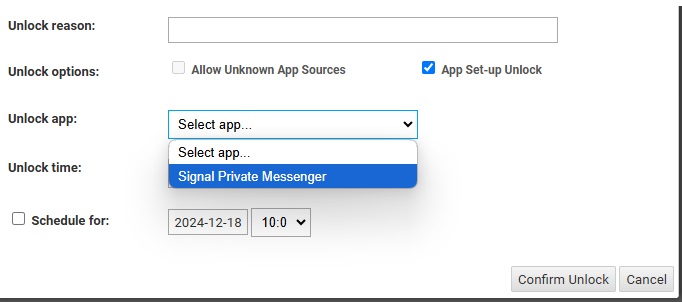
Note* this will need to be done on both your OLD and NEW phones. - On the old phone, go to Signal Settings > Account > Transfer account > Continue.
- Physically move the new phone near the old phone and accept the alert on the new phone.
- Confirm the 7-digit code matches on both phones and select Continue on each phone.
- On the new phone, tap Continue registration and register the device.
- On the old phone, tap Done to complete.
- On the old phone, uninstall Signal typically in Android Phone Settings > Signal > Uninstall or through steps specific to your phone.
Still having trouble?
- Enable permissions for Signal:
Android Phone Settings > Apps or Apps & Notifications > Signal > App Permissions or Permissions > Enable all permissions.
How do I restore from a backup file?
- On the old phone, enable a backup within Signal on the phone that has your Signal message history.
- Record the 30-digit passphrase.
- Manually move the
Signalfolder that contains the backup file.- Same phone? Manually move the backup to a computer before you reset this phone.
- New phone? Manually move the backup file from your old phone to your new phone.
- On the new phone, install Signal select Transfer or restore account, select restore from backup, and enter your 30-digit passphrase to restore before submitting your phone number for registration.
How do I enable a backup?
- Tap on the profile icon to access Signal Settings > Chats > Chat backups > Turn on.
- For Android OS version 9 or earlier, go to step 3.
For Android OS version 10 or later, select Choose folder and choose where to save the backup file. - Copy the 30-digit passphrase from left to right, top to bottom. You will need this passphrase in order to restore a backup. Keep it in a safe place.
- Confirm that you have written down the passphrase.
- Select Enable backups.
- Tap Create backup. You can verify whether or not a backup has completed successfully by checking the time of the last backup.
- Signal displays where you can find the backup under the title Backup folder. Go to that folder.
- Move or save a copy of the backup on a device that is not your phone.
- A common method is to use a cable to plug your phone into your computer. Some phone’s require you to use a cable that was provided with your phone in order to transfer data.
What if my last backup says “Never”?
- Tap Create backup.
- Enable permissions for Signal:
Android Phone Settings > Apps or Apps & Notifications > Signal > App Permissions or Permissions > Enable all permissions. - Free up space on your phone.
- Temporarily unmount or disable your external SD card so the backup can be saved to your internal memory.
Where can I find the backup file?
- Your backup folder is listed under Signal Settings > Chats > Chat backups > Backup folder. Use the files app or plug your phone into a computer to go to the folder.
- For older versions of Signal, the backup file
signal-year-month-date-time.backupcan be found at/Internal Storage/Signal/Backupsor/sdcard/Signal/Backups
Where do I move the backup file?
Move the backup file signal-year-month-date-time.backup to a device that is not your phone.
- A common method is to use a cable to plug your phone into your computer. Some phone’s require you to use a cable that was provided with your phone in order to transfer data.
- Recent phones offer steps in Android Phone Settings > Storage.
- You may need to respond to the notification that appears on your phone to change the mode to Transfer files (MTP).
What do I do on my new phone or phone that was reset?
- Manually move the
Signalfolder with the backup file to your phone. For older versions of Signal, move it to the top most level or/Internal Storage/on your restored or new phone.- A common method is to use a cable to plug your phone into your computer. Some phone’s require you to use a cable that was provided with your phone in order to transfer data.
- Recent phones offer steps in Android Phone Settings > Storage.
- You may need to respond to the notification that appears on your phone to change the mode to Transfer files (MTP).
- Install Signal.
- Select Restore backup. If it is not available, Select Continue.
- If you selected Continue in step 3, then
- Accept the permissions.
- Signal will automatically detect your local backup and ask you to restore before registration.
- Select Restore backup.
- If you selected Restore backup in step 3, choose the backup folder and file.
- Enter your 30-digit passphrase.
What if I forget my 30-digit passphrase and need to restore messages on a new phone?
You will be unable to restore a backup without the passphrase. Think of the 30-digit passphrase as a key that can not be duplicated. You can create a new backup to create a new passphrase.
Go to Signal Settings > Chats > Chat backups
- Tap Turn off to disable chat backups and delete all previous backups on your phone.
- Tap Turn on to create a new backup with a new passphrase.