Add New apps in the Streamline 3 Admin Console
This is for Console Admins and outlines how to manage mobile apps for the Streamline3 Account in the web Admin Console.
NOTE: The instructions are applicable to app management changes released in the console in August 2022. These changes simplified the management of apps and are summarised as follows:
- Apps are no longer approved from the global available list to the Streamline3 account; they’re simply added from the Play Store list and assigned to user’s devices.
- The request flow is still in place; users request apps to their admins, and apps that have not previously been approved are reviewed by the Streamline3 team for approval.
Manage apps
- Access the Admin Console by logging into https://my.ubtsupport.com with your admin credentials.
- Select ‘Account’ in the menu > ‘Mobile Apps’ option. This page shows all mobile apps that have been added to the account and assigned to at least one user:
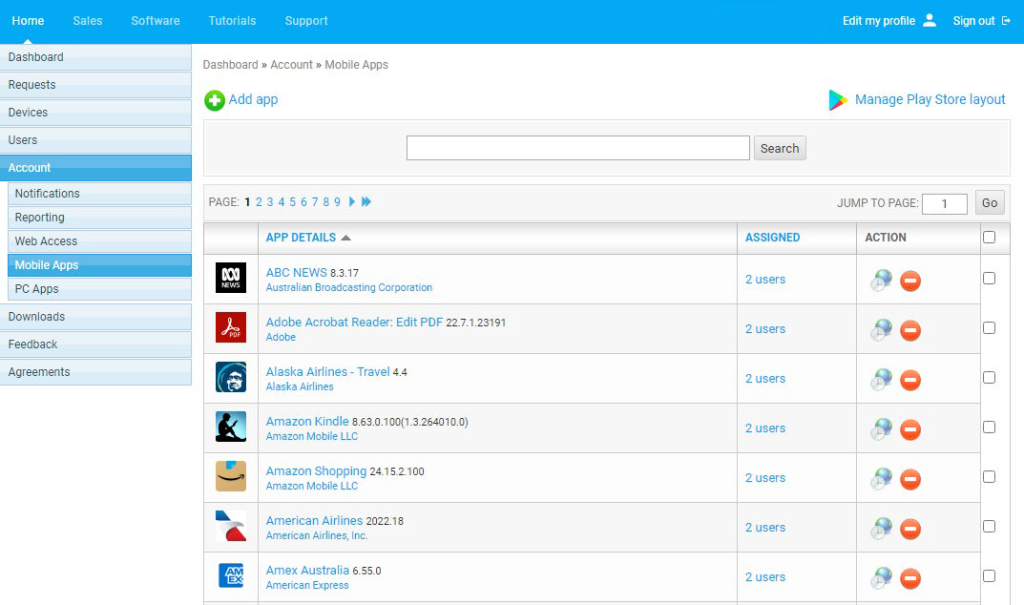
- Select the ‘Add app’ button
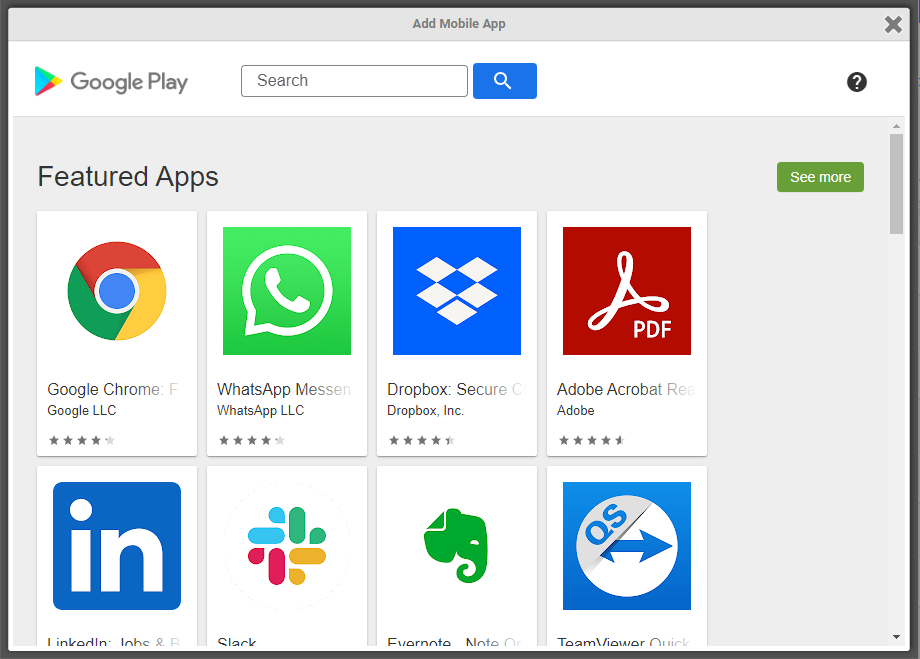
- Search for and select the app required. View information about the app
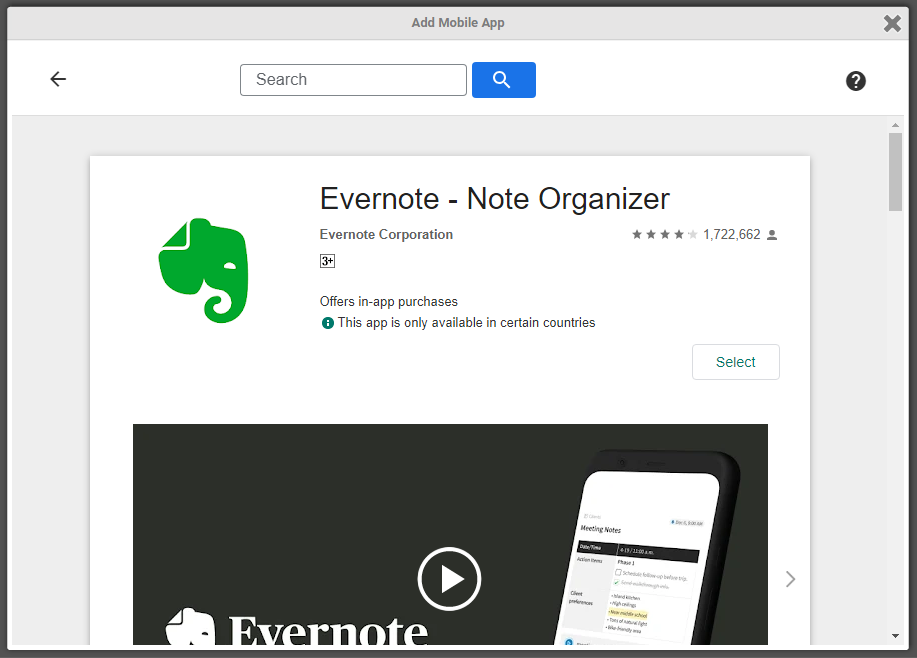
- Click the ‘Select’ button. Choose to allow all users in the account to install the app, or select specific users only, to be allowed to install the app.
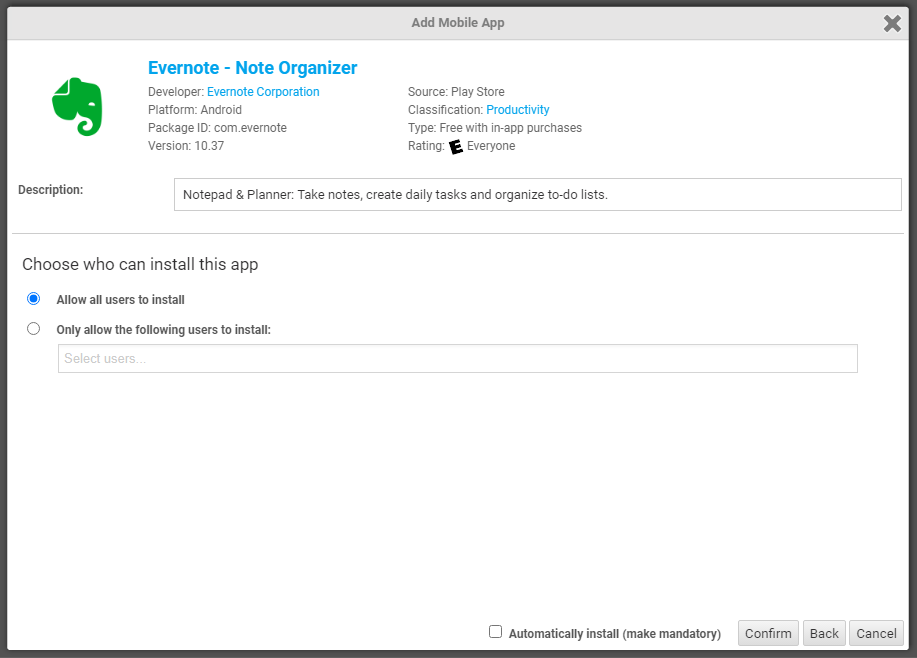
- Click ‘Confirm’ and the app is added to the list and assigned to the selected users and now able to be installed on the device.