Managing mobile apps in the Streamline 3 Admin Console
This is for Console Admins and outlines how to manage mobile apps for the Streamline3 Account in the web Admin Console.
NOTE: The instructions are applicable to app management changes released in the console in August 2022. These changes simplified the management of apps and are summarised as follows:
- Apps are no longer approved from the global available list to the Streamline3 account; they’re simply added from the Play Store list and assigned to user’s devices.
- The request flow is still in place; users request apps to their admins, and apps that have not previously been approved are reviewed by the Streamline3 team for approval.
Manage apps
- Access the Admin Console by logging into https://my.ubtsupport.com with your admin credentials.
- Select ‘Account’ in the menu > ‘Mobile Apps’ option. This page shows all mobile apps that have been added to the account and assigned to at least one user:
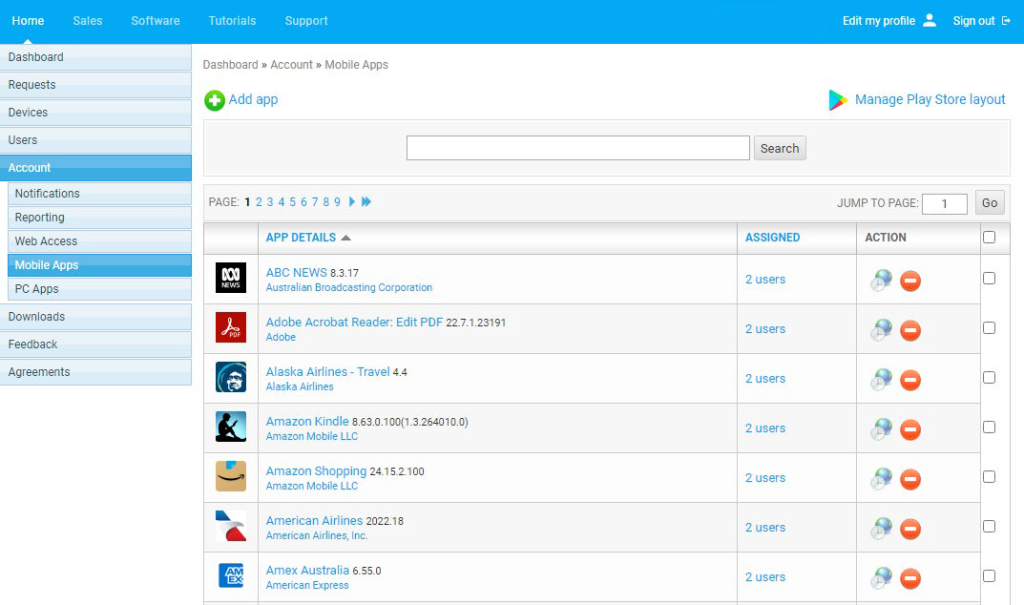
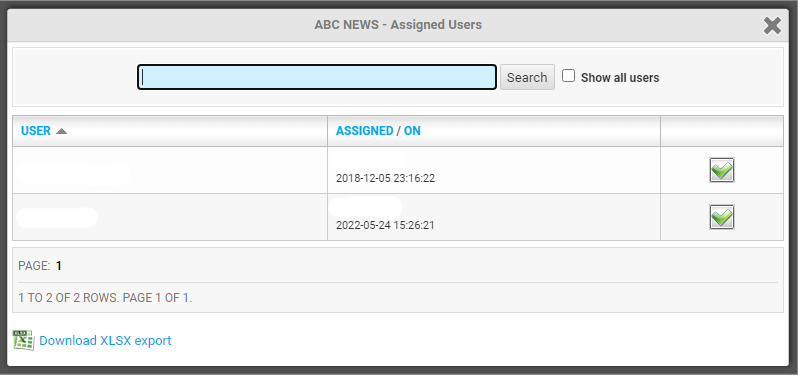
- The ‘Assigned’ column shows how many users in the account have the app assigned to them and available to install; click on the count to view a list of users.
a. Unassign this app from users by unchecking the green tick.
b. Check the ‘Show all users’ filter to view other users and assign the app.
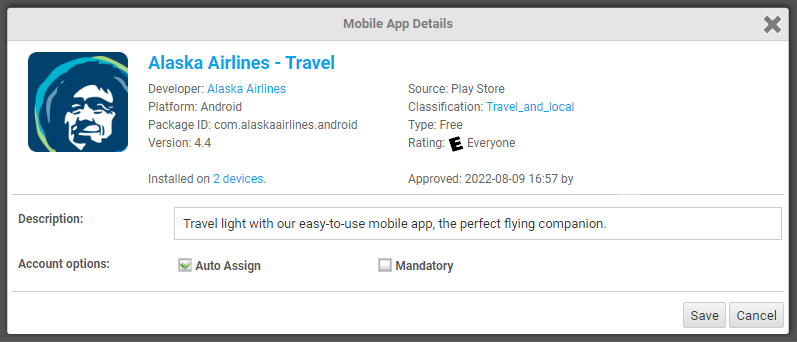
- Select the app name to view more details about the app and set additional options:
a. Check ‘Auto assign’ to automatically assign this app to all devices in the account including new devices.
b. Check ‘Mandatory’ to install this app on all devices and prevent users from removing the app.
c. Click on the ‘Installed on’ count to view a list of devices that have this app installed.
- Select the red delete button to remove the app.
WARNING: Selecting OK to the confirmation message on this action, will unassign and uninstall the app from all devices in your account. - Select the schedule icon on a particular app to set an access schedule for all users in the Streamline3 account, for that app.